Test Multi-timezone Easily with Chrome DevTools

Test Multi-timezone Easily with Chrome DevTools
If your system supports Multi-timezone, you need to test every Timezone. Many people change the Timezone of their computer directly. That is a hassle, and it can affect your other apps.
Today I want to show you an easier way. You can change the Timezone right inside Chrome DevTools. You don’t need to touch your system settings at all.
How to Change the Timezone with Chrome DevTools
-
Check your current Timezone
You can see that I am in
UTC+7 (Asia/Bangkok)right now. I will try to change it to the Japan Timezone (UTC+9).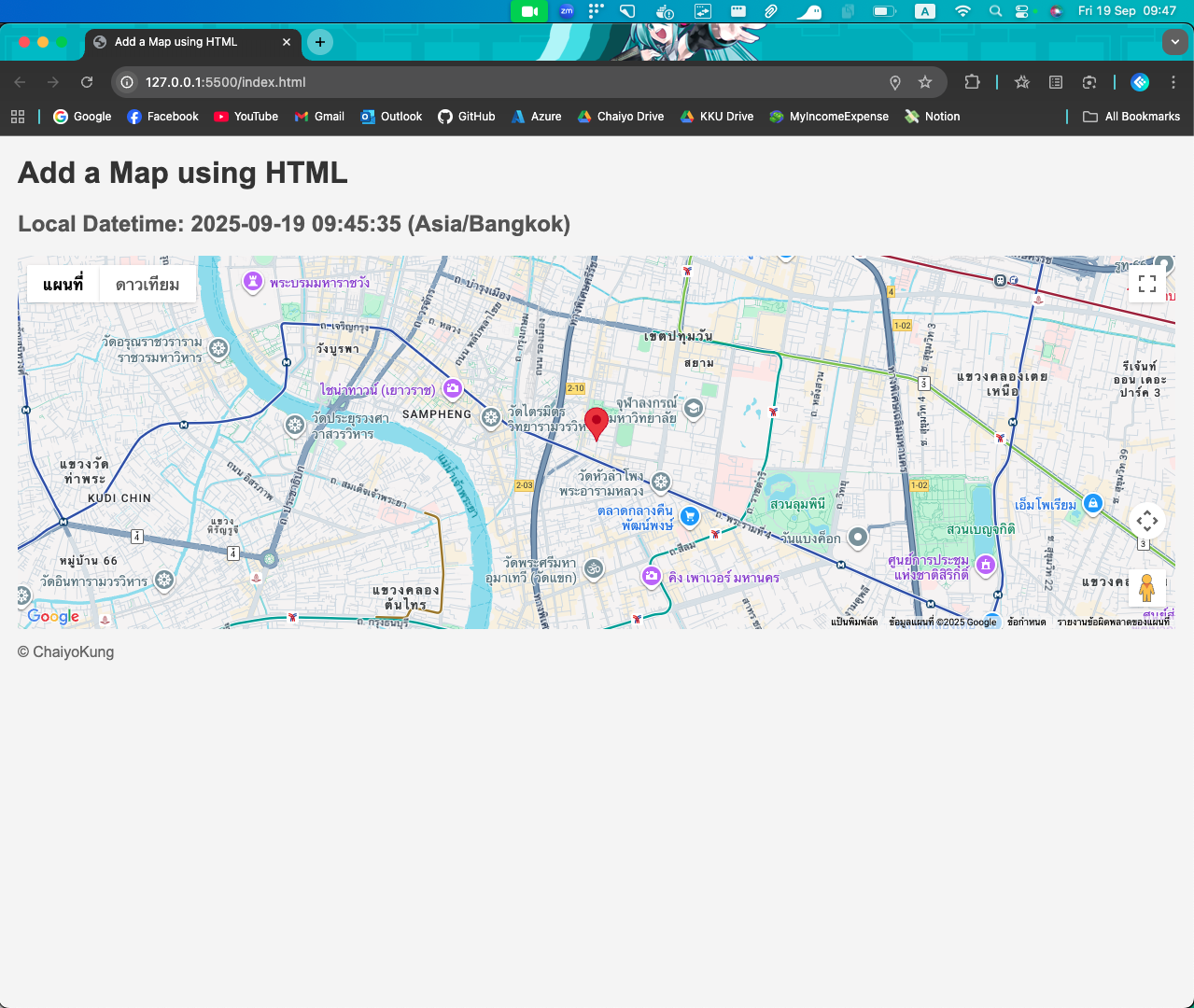
-
Open Chrome DevTools
Press
F12, or right-click and choose Inspect.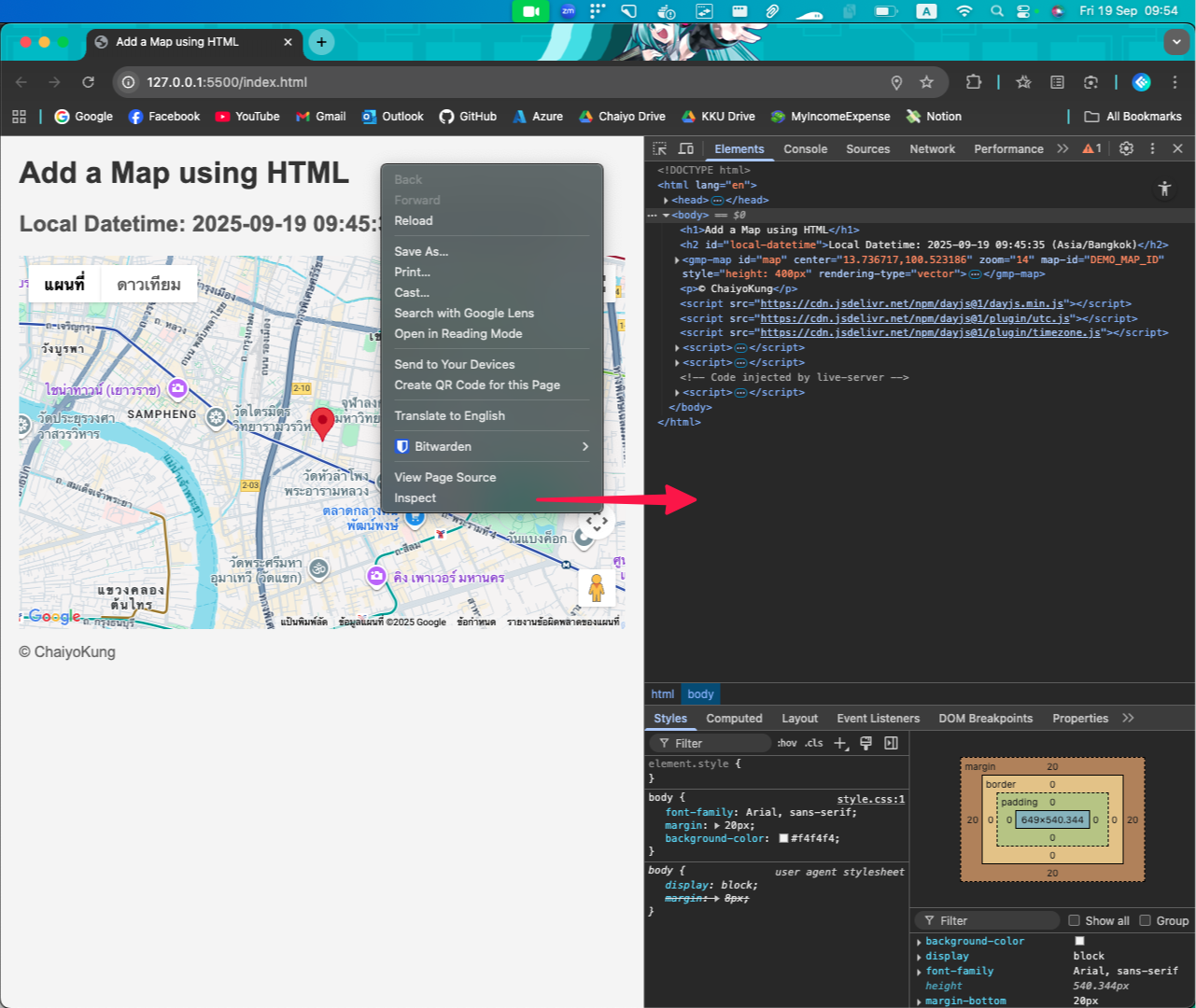
-
Open the Sensors menu
Click the
...button (the three dots at the top right of DevTools). ChooseMore tools>Sensors.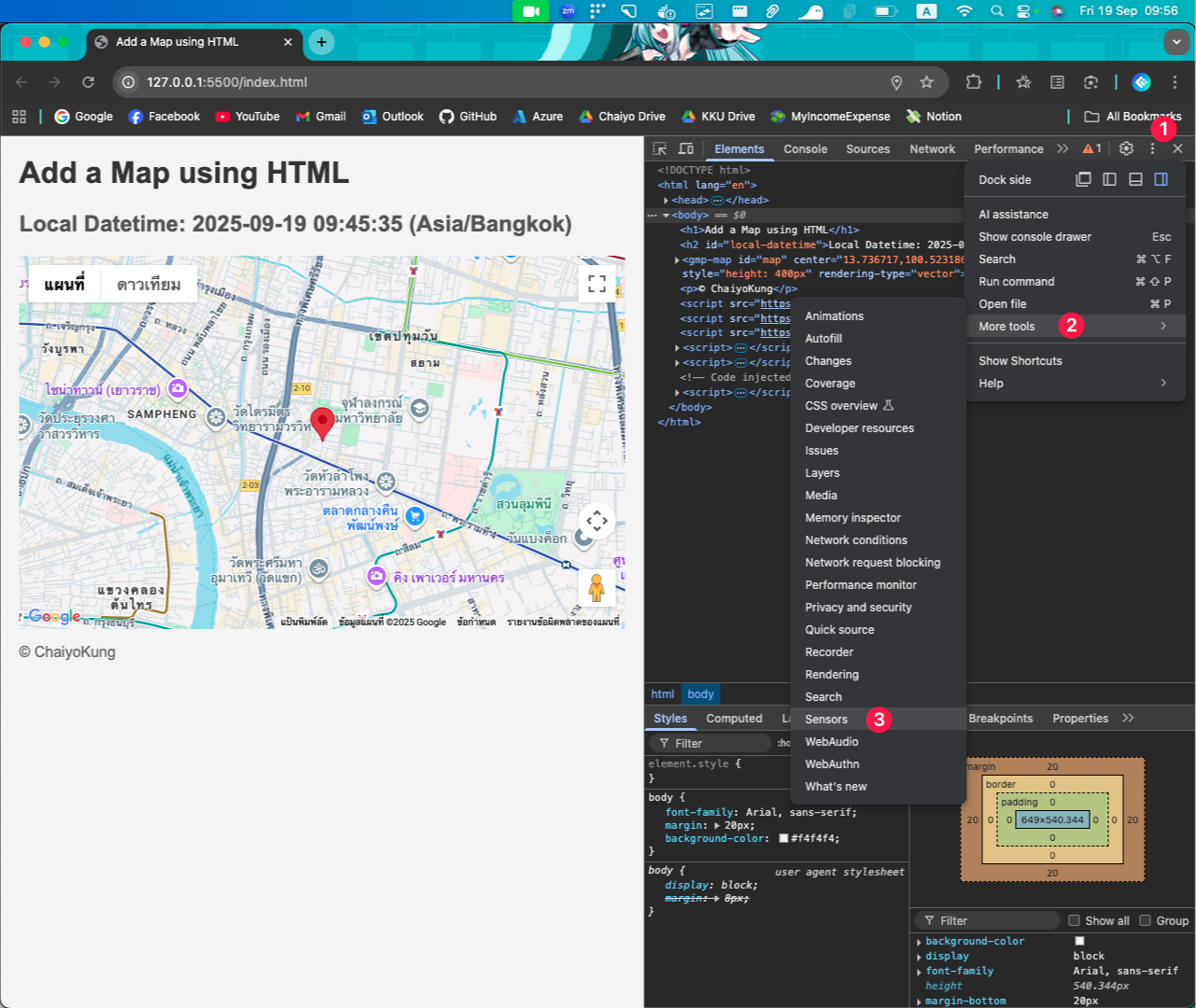
-
Change the Location and Timezone
At the bottom, you will see a section called “Location”. Change it from
No overrideto the city you want, such asTokyo. You will see theTimezone IDchange toAsia/Tokyoright away.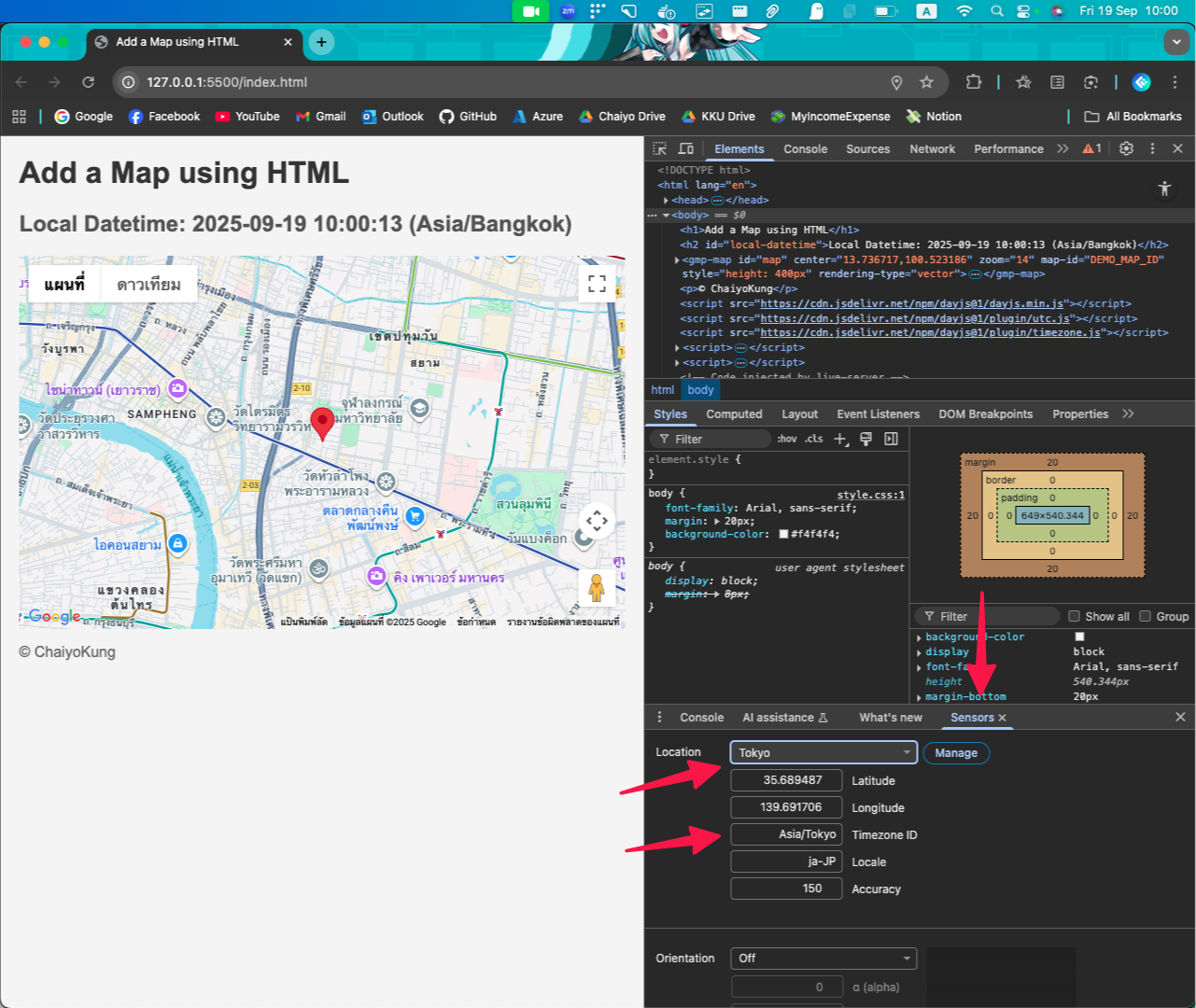
-
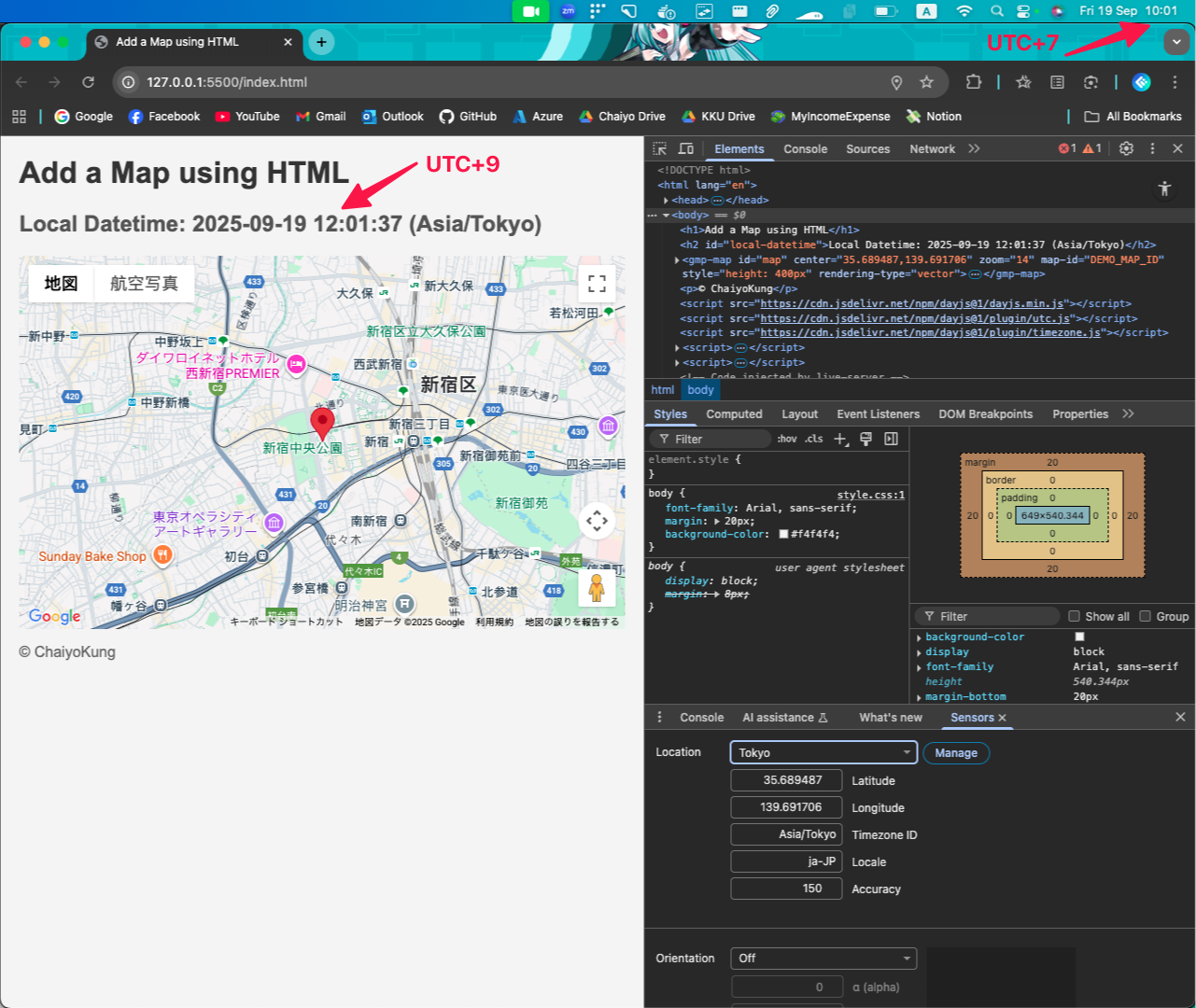
Refresh the web page
Refresh the page so the website loads the data again. You will see the time on the website change to the Timezone you chose.
-
You can change other Location settings too
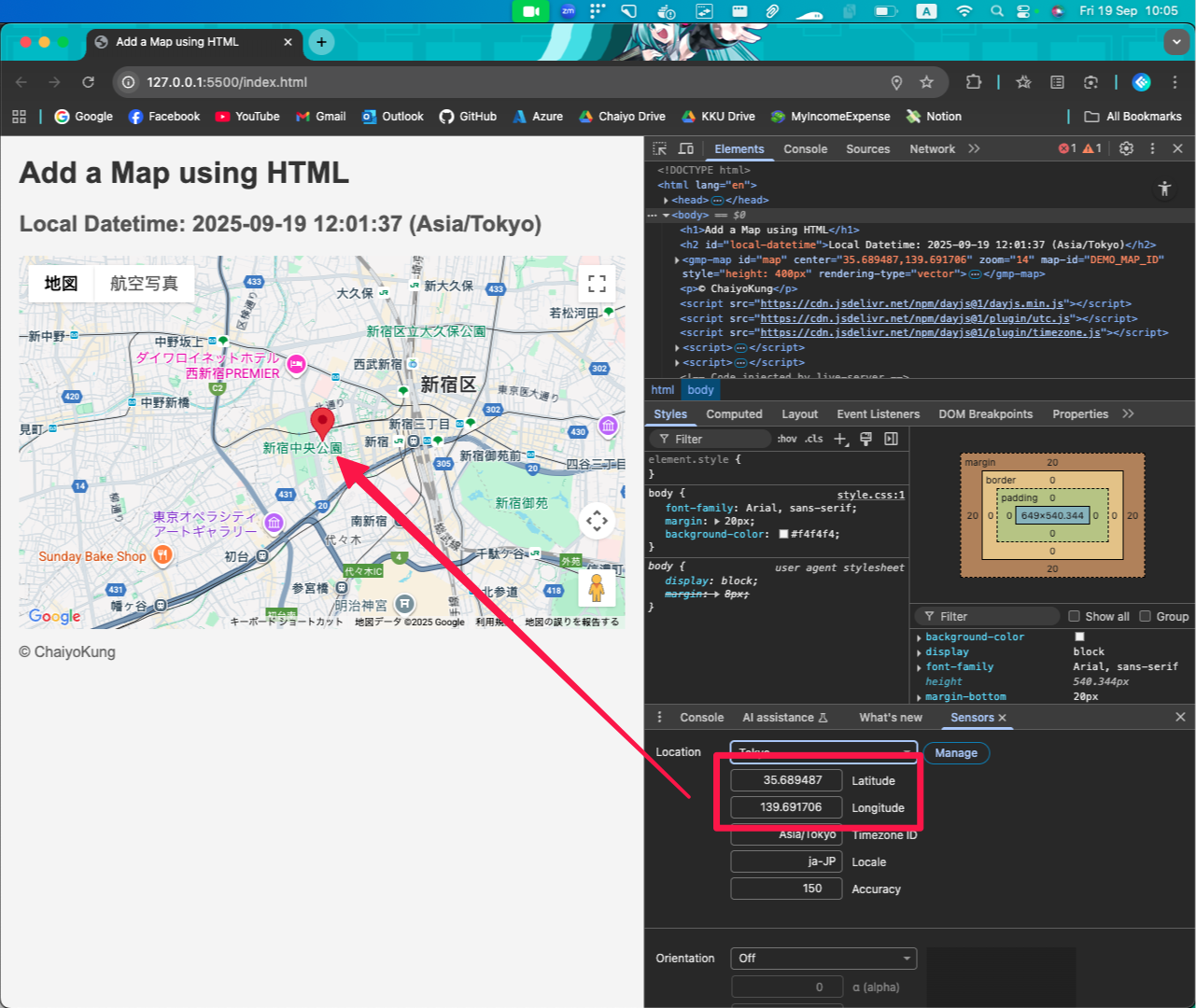
Besides the Timezone, you can also change the Latitude/Longitude to fake your location. For example, if you choose Tokyo, the Marker on the map moves to Japan.
-
Go back to your original Timezone
If you want to use your computer’s Timezone again, just change the Location back to
No override.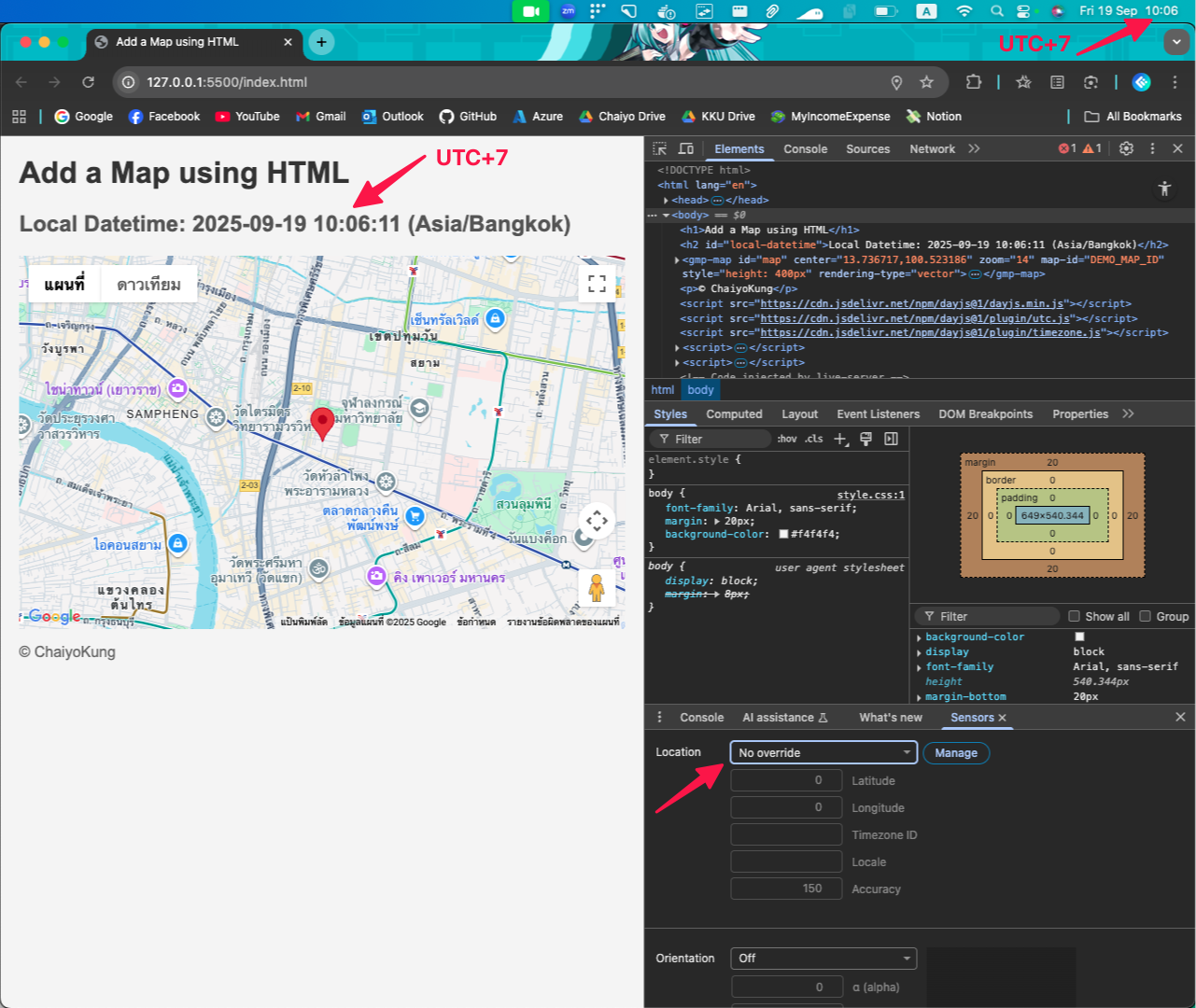
Summary
Changing the Timezone in Chrome DevTools makes it easier to test time-related features. You don’t need to touch your main system settings, and you can fake the Location too. It is great for Developers and QA who need to test many countries.
Thank you!