How to Run MSSQL on Your Own Machine with Docker

In this blog, I will show you how to run MSSQL Server on your own machine with Docker. It is great for developers who want an easy database for testing and development.
Why Run MSSQL with Docker?
- You do not need to install anything complicated on your real machine.
- You can delete the Container any time, so it does not waste space.
- It works well when you test or develop many projects at the same time.
Get Your Machine Ready
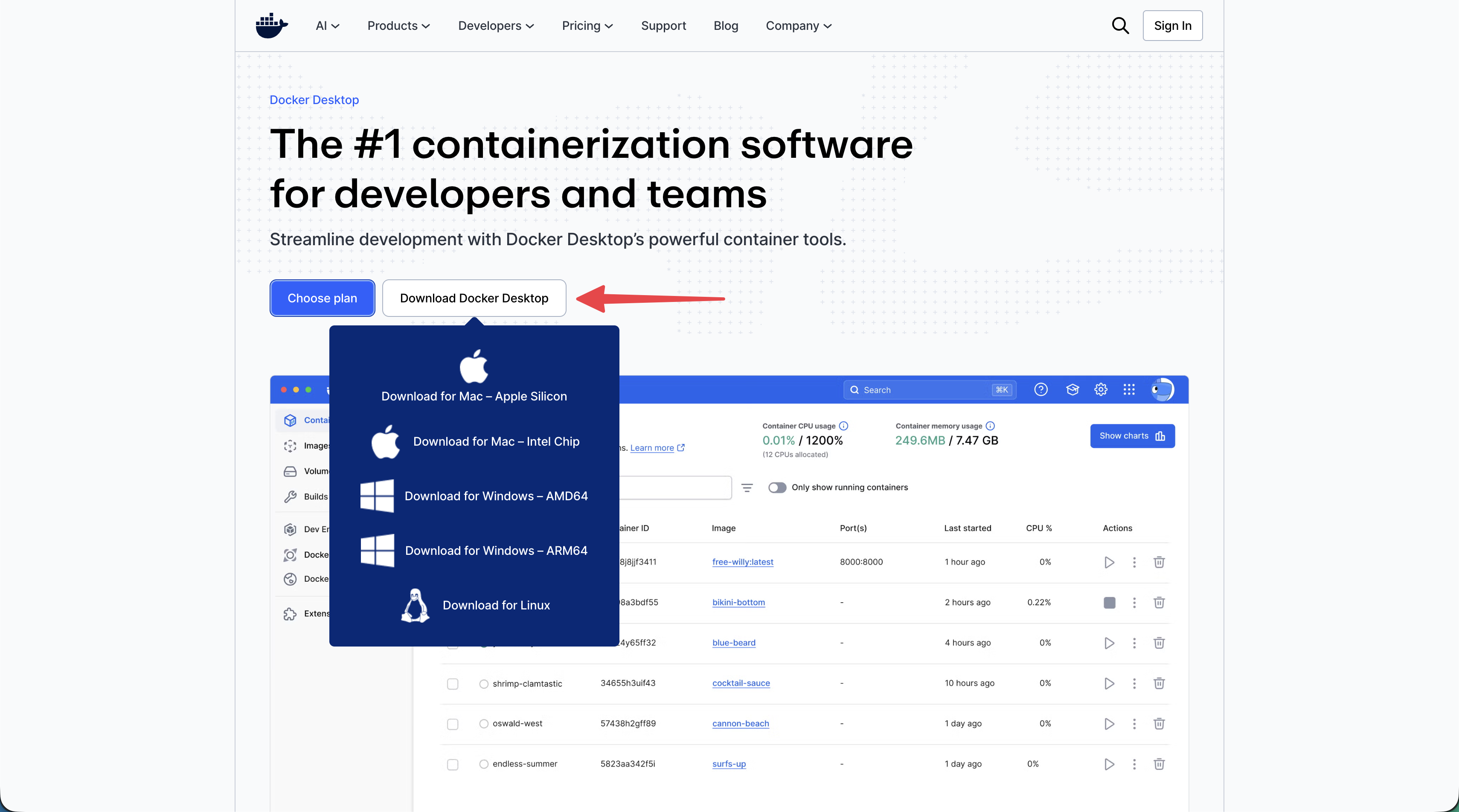
First, install Docker Desktop. It works on Windows, macOS, and Linux.
Run MSSQL Server with Docker
Just use this command in your Terminal.
docker run -e "ACCEPT_EULA=Y" -e "MSSQL_SA_PASSWORD=<password>" -p "1433:1433" -d "mcr.microsoft.com/mssql/server:2025-CU2-ubuntu-22.04"- Change
<password>to the password you want. It must have at least 8 characters. It must also have at least 3 of these 4 types: uppercase letters, lowercase letters, numbers, and special characters.
Example
docker run -e "ACCEPT_EULA=Y" -e "MSSQL_SA_PASSWORD=MyStrongP@ssw0rd" -p "1433:1433" -d "mcr.microsoft.com/mssql/server:2025-CU2-ubuntu-22.04"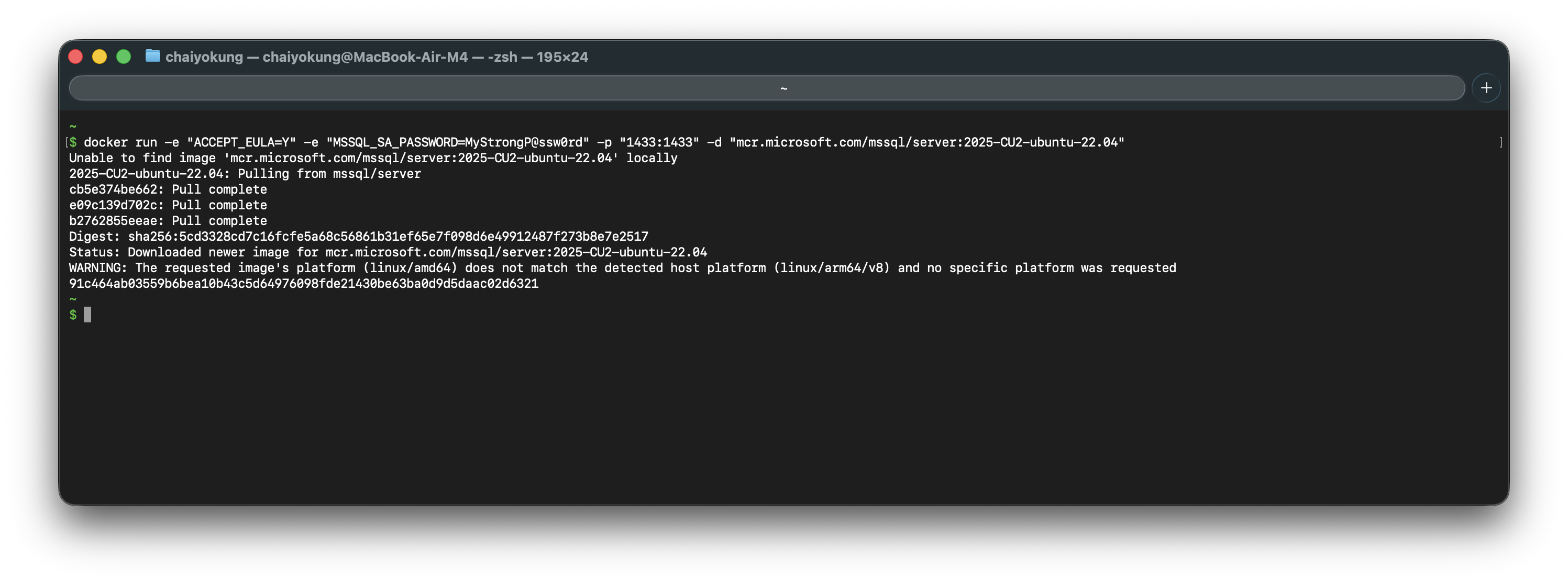
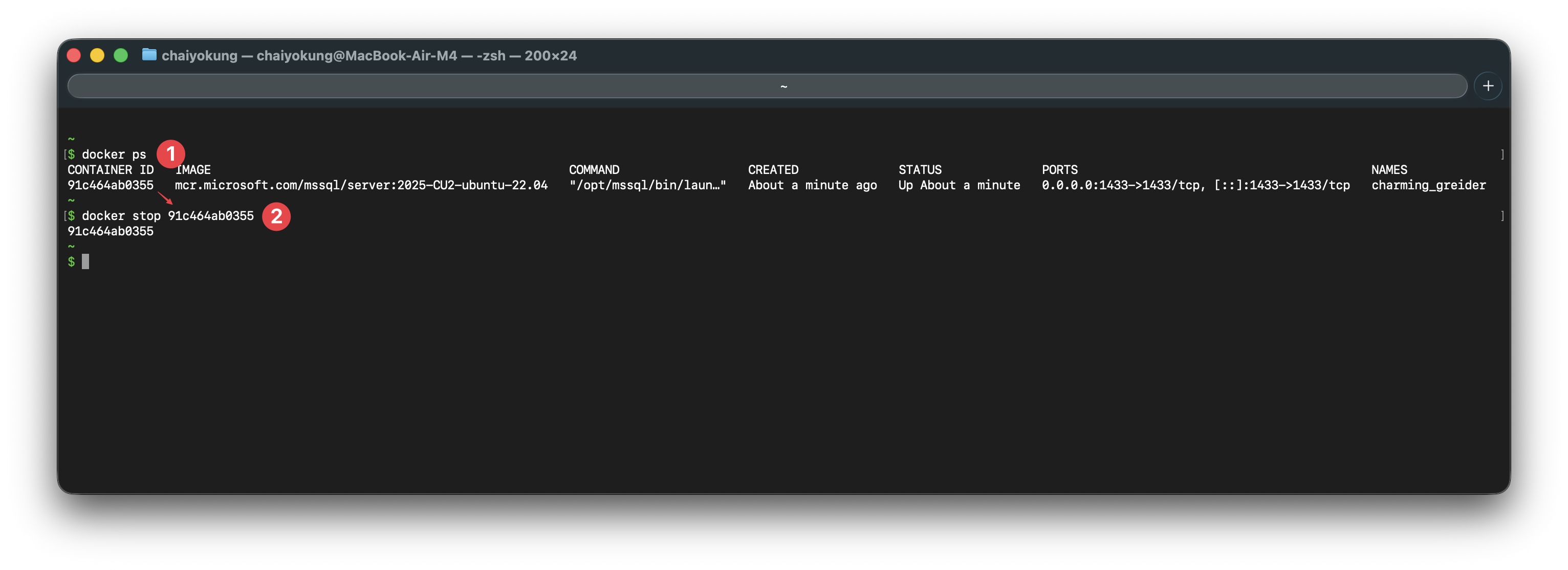
If you want to stop the Container, use docker ps to see the name or ID of the Container that runs MSSQL. Then run docker stop <container_id|container_name>.
Extra:
You can see the Image Tags and versions on Docker Hub: microsoft/mssql-server
There are many versions to choose from, like 2019, 2022, and 2025.
These are some Tags you can use:
mcr.microsoft.com/mssql/server:2025-CU2-ubuntu-22.04mcr.microsoft.com/mssql/server:2022-latestmcr.microsoft.com/mssql/server:2019-latestPick the Tag for the version you want. You can also see more Tags on MCR: mssql/server/tags.
Connect with sqlcmd Inside the Container
If you want to connect to the SQL Server in the Container, you can use the sqlcmd tool inside the Container. Run this command on your host machine:
docker exec -it "<container_id|container_name>" "/opt/mssql-tools18/bin/sqlcmd" -S "localhost" -U "sa" -P "<password>" -C- Change
<container_id|container_name>to the name or ID of the Container that runs MSSQL. - Change
<password>to the password you set when you ran the Container.
Example
docker exec -it "charming_greider" "/opt/mssql-tools18/bin/sqlcmd" -S "localhost" -U "sa" -P "MyStrongP@ssw0rd" -C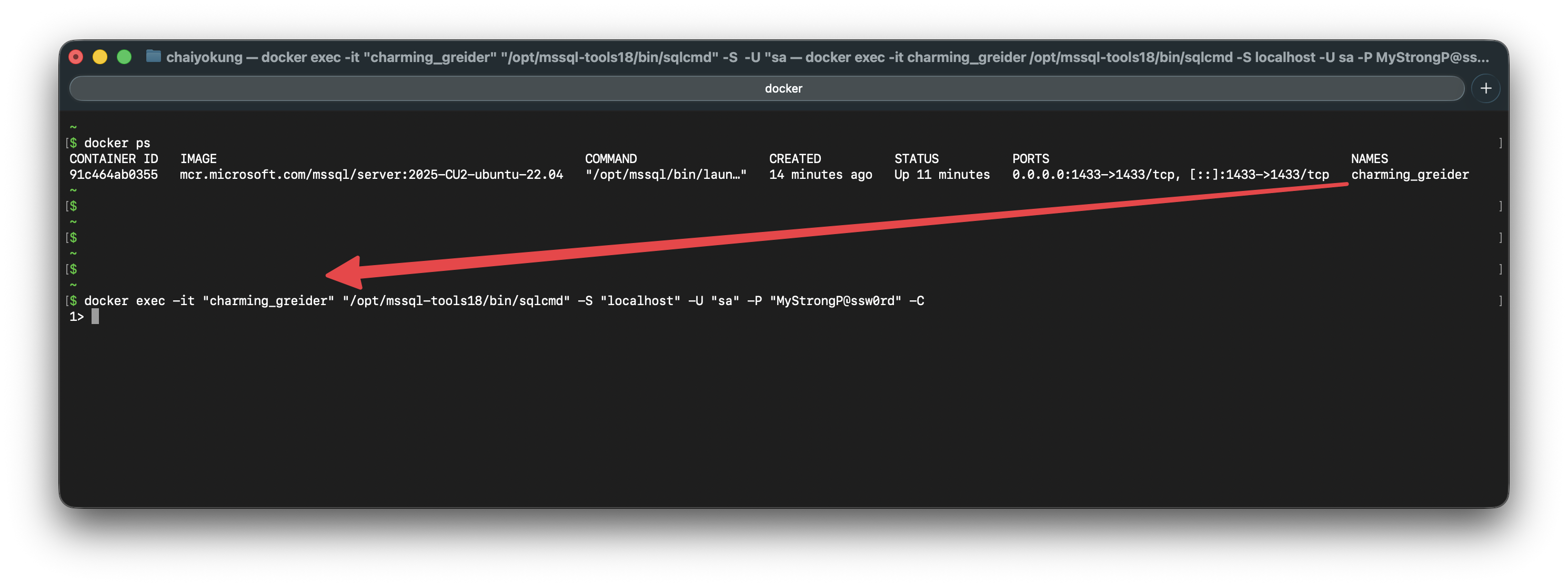
Note:
Since SQL Server 2022 (16.x) CU 14 and SQL Server 2019 (15.x) CU 28, the Container Image comes withmssql-tools18.
The old/opt/mssql-tools/binfolder is going away. It is now/opt/mssql-tools18/bin, so it matches the latest version of the tools.
If you use an older Image, you may need the old path/opt/mssql-tools/bin/sqlcmd.
Try Creating a Database
Connect, then run this command to create a new Database.
CREATE DATABASE MyApp;
GO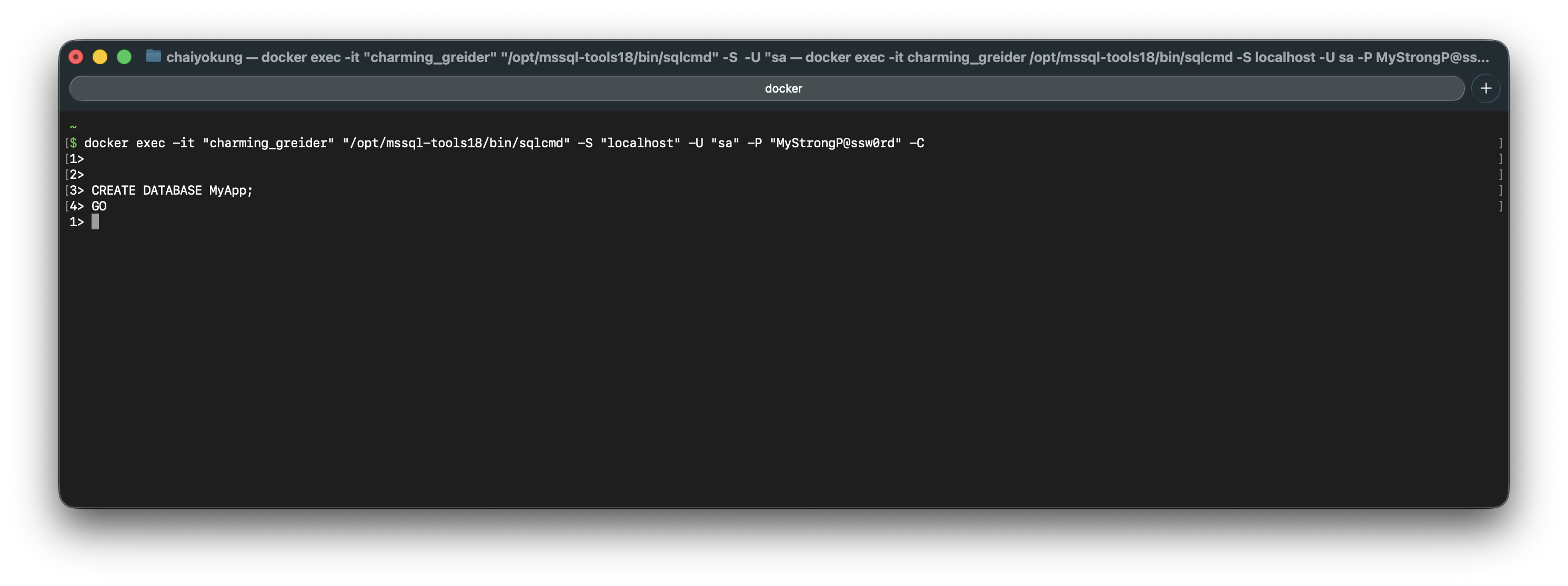
Connect to MSSQL with Any Tool
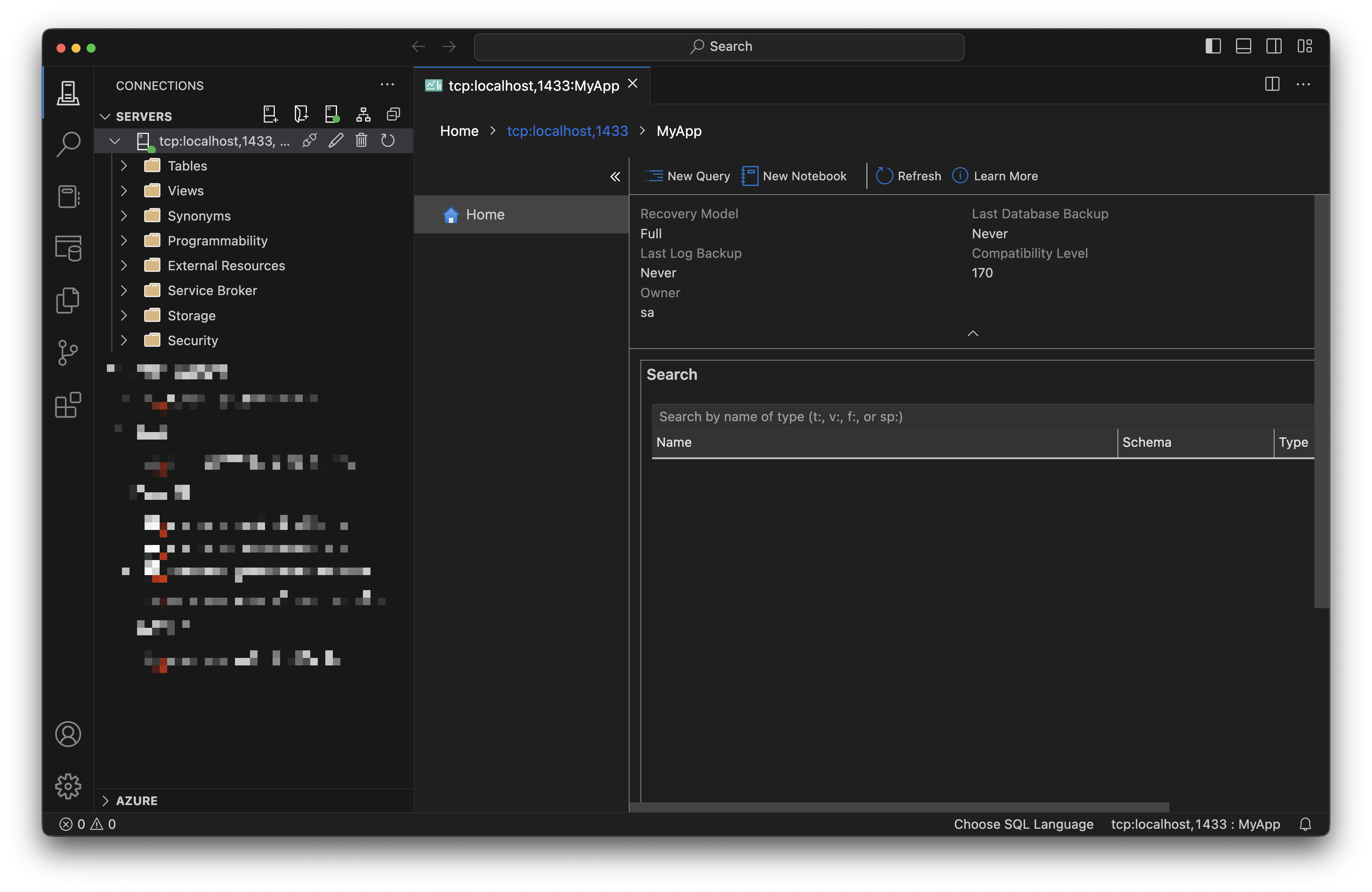
You can use Azure Data Studio, DBeaver, or SQL Server Management Studio (SSMS).
Use these settings.
| Host/Server | Port | User | Password | Database (optional) |
|---|---|---|---|---|
| localhost | 1433 | sa | MyApp (or anything) |
Example Connection String (for .NET, Node.js, etc.)
Server=tcp:localhost,1433;Initial Catalog=MyApp;Persist Security Info=False;User ID=sa;Password=MyStrongP@ssw0rd;MultipleActiveResultSets=False;Encrypt=True;TrustServerCertificate=True;Connection Timeout=30;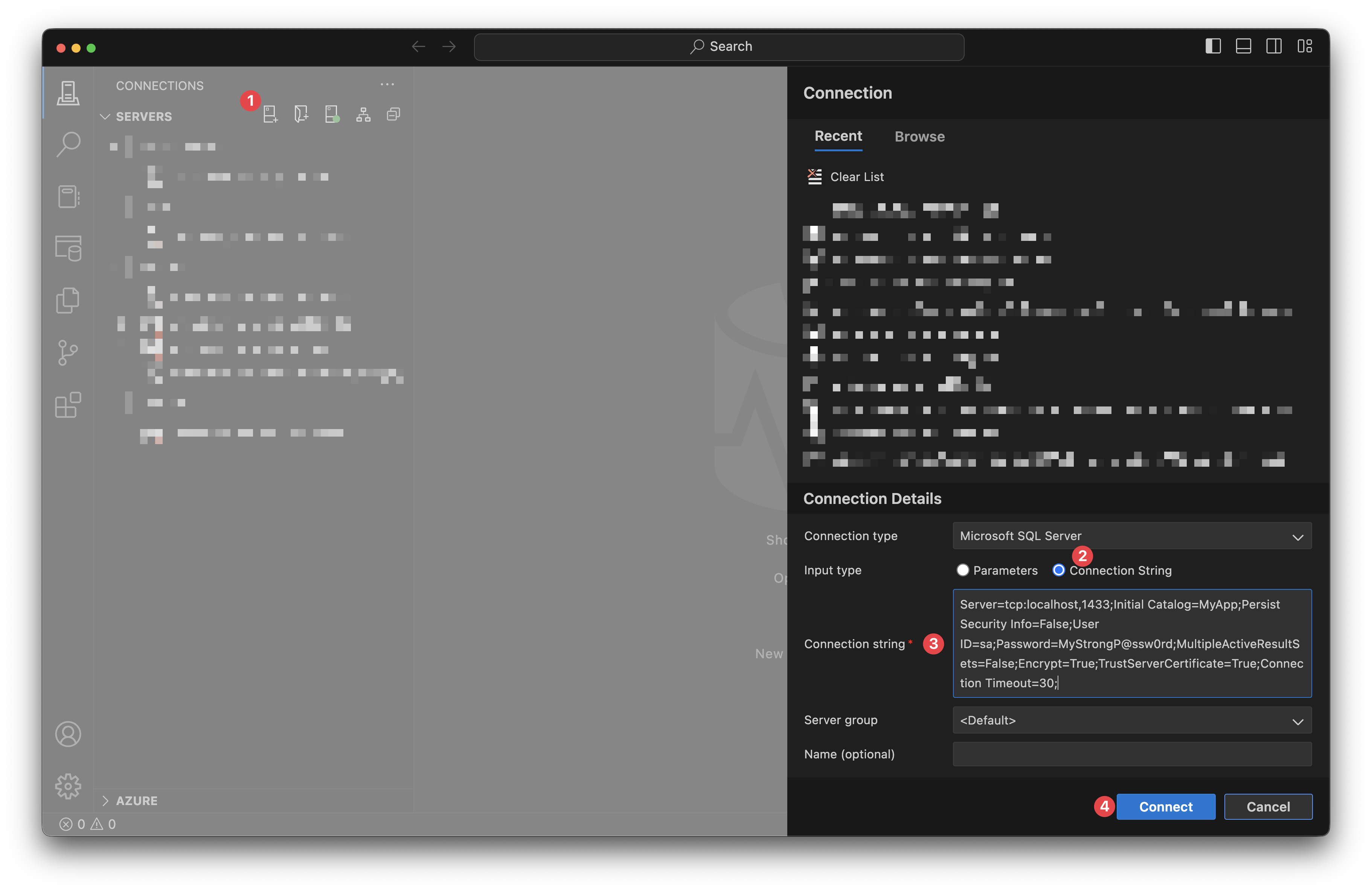
Extra Tips
If you want to keep your data after you remove the Container, add a Mount Volume (-v).
Example
docker run -e "ACCEPT_EULA=Y" -e "MSSQL_SA_PASSWORD=MyStrongP@ssw0rd" -p "1433:1433" -v "mssql-data:/var/opt/mssql" -d "mcr.microsoft.com/mssql/server:2025-CU2-ubuntu-22.04"Summary
That’s it! Now you have an MSSQL Server on your own machine. It is easy and clean, and you do not need to worry about making a mess of your machine.
It works well for all kinds of testing and development.
Thank you!